mySCADA Technologies
Menu
  • NEWS
  • PRODUCTS
    • PRODUCTS OVERVIEW
    • myDESIGNER
    • myPRO
    • myBOX
    • myPANEL
    • myCMS
    • myACCESS
    • mySCADA Live Demo
  • SOLUTIONS
    • SOLUTIONS
      • PRODUCTION OVERVIEW
      • ACTIVE CONTROL
      • ALARMING SYSTEM
      • PRODUCTION STATISTICS
      • INTELLIGENT MAINTENANCE
      • PAPERLESS PRODUCTION
      • REMOTE CONNECTIVITY
    • INDUSTRIES
      • INDUSTRY 4.0
      • INTERNET OF THINGS
      • BUILDING AUTOMATION
      • FOOD AND BEVERAGE
      • OIL AND GAS
      • POWER AND ENERGY
      • PRODUCTION LINE
      • TRANSPORTATION
      • WATER AND WASTEWATER
    • REFERENCES
      • SHEET METAL PROCESSING/METALLURGY
      • SMART HOUSING
      • INJECTION MOLDING
      • HEAVY CLAY / CERAMIC INDUSTRY
      • LOGISTICS
      • AUTOMOTIVE INDUSTRY
      • MANUFACTURING MACHINE TOOLS
      • OFFICE CENTER
      • PAPERMAKING MACHINE
    • COOPERATION
      • CUSTOMERS
  • RESOURCES
    • DOWNLOADS
      • MANUALS
      • myDESIGNER
      • myPRO
      • myBOX
      • myPANEL
      • myCMS
      • myACCESS
      • REFERENCES
      • mySCADA LOGO
    • ONLINE MANUALS
      • myDESIGNER
      • myPRO
      • myBOX
      • myPANEL
      • myACCESS
      • Video tutorials
    • DOCUMENTS
      • EULA
      • PRIVACY POLICY
      • TERMS AND CONDITIONS
    • FAQ
      • GENERAL
      • myDESIGNER
      • myPRO
      • myBOX
      • myPANEL
      • PLCs
      • SQL DATABASES
  • CONTACTS
    • DISTRIBUTORS
    • PARTNERS
    • CONTACTS
  • PRICING
  • LOGIN
0

No products in the cart.

myDESIGNER

264
  • Introduction
  • About myDESIGNER
  • Tutorial Videos
  • Getting started with myDESIGNER
  • Creating a project
  • Workspace management
  • Checking project
  • Projects visual appearance
  • Creating views
  • View background
  • Selecting objects
  • Drawing primitives
  • Creating text elements
  • Inserting images
  • Poly-lines
  • Moving objects
  • Resizing objects
  • Rotating objects
  • Skewing objects
  • Filleting
  • Combining objects
  • Fill and stroke
  • Rulers and guides
  • Layers
  • Copying and pasting elements
  • Object’s order
  • Grouping
  • Repeated actions mode
  • View scripting
  • Used tags
  • Zooming on zone
  • Undo and redo
  • View properties
  • Components
  • Default components
  • Custom components
  • Used components
  • Editing components
  • Replacements
  • On touch actions
  • Entering adv. functions (equations)
  • Components library
  • Combo box, List box and Text box
  • Inserting into view
  • Components parameters
  • Using components in view scripts
  • Supported functions
  • Chart component
  • Active area
  • Creating active areas
  • External web page in active area
  • HTML code
  • DIV type
  • Layout views
  • Page layout
  • Adding layout view
  • Creating new layout
  • Entering tags
  • Entering mathematical expressions
  • Tree tags database
  • Changing tag value
  • Engineering units
  • Filtering data
  • Usage count
  • MS Excel import and export
  • Tag import
  • Deleting unused tags
  • Restoring tag database
  • Specifying a new tag during dev.
  • Formatting numerical values
  • Linking views with PLC
  • Animations
  • Show value animation
  • Value to text mapping animation
  • Visibility animation
  • Opacity animation
  • Color animation
  • Moving animation
  • Size animation
  • Scale animation
  • Rotate animation
  • Circular sector animation
  • Zoom visibility animation
  • Sounds
  • Sounds triggered by tag value
  • Effects
  • Time Sequence
  • Time sequence example
  • Triggering time sequences
  • Modifying time settings
  • Adding new sequences
  • Renaming time sequence
  • Switching among time sequence
  • Modifying timing
  • Combining multiple time sequences
  • Open command
  • Open type
  • Open Command Target
  • Popup (face plate) window
  • View type
  • Write/Set command
  • Using batches Write/Set command
  • Specifying set command parameters
  • Value options
  • Scaling set values
  • Set example
  • Key shortcuts
  • On touch
  • On touch in views
  • On touch in component
  • On touch example
  • Lock element
  • Lock key
  • Slider
  • Parametric views
  • Opening parametric views
  • Symbolic text replacements
  • Symbolic tag creation
  • Replacing connections
  • Nesting parametric views
  • Usage example of parametric views
  • View scripts
  • Using script in views
  • Equations in view script using params.
  • Declaring variables
  • Script writing
  • Using var in animations and effects
  • Debugging view scripts
  • Using debug screen on your view
  • Using web browsers integrated debug
  • Using JavaScript libraries – Includes
  • Linking external JavaScript libraries – Remote includes
  • View script func – elements
  • View script function – ListBox, TextBox, ComboBox (Smart input)
  • View script function – Animations
  • View script function – effects
  • View script function – error frames
  • View script function – zoom
  • View script function – open command
  • View script function – Users, language and login
  • View script function – Retrieving files
  • View script function – server-side script communication
  • View script function – tables
  • View script function – alarms and aggregated alarms
  • View script function – Data-Log data
  • View script function – custom charts
  • View script function – tag info
  • View script func – Other useful funcs
  • Documents
  • CAS alarms
  • Digital alarms
  • Analog alarms
  • Alarm window
  • Alarm history
  • CAS alarms occurrence – Chart/Table
  • CAS alarms in view – example
  • ✵CAS alarms preview of appearance
  • Data logging
  • Data-logs
  • Defining connection – Data-log
  • Defining data points in data-logs
  • Continuous data logging in data-logs
  • Triggered data-logs
  • Triggered data-logging example
  • Simple periodic data-logs export to CSV and Microsoft Power BI
  • Data-logs properties
  • Data-Log views
  • Data-logs views – data points select
  • Data-logs views Data grouping
  • Data-logs view – Data filtering
  • ✵ 3D chart
  • ✵Data-logs preview – appear. editor
  • Aggregated data logs
  • Creating aggregated data log
  • Aggregated values
  • Time aggregates
  • Value change aggregates
  • Aggregates based on alarm activation
  • Running the aggregation periodically
  • Advanced trends
  • Advanced trends – Using multiple axes
  • Advanced trends – visual appearance
  • Connections
  • Creating new connection
  • Creating PLC type connection
  • Deleting connections
  • User accesses
  • Access levels
  • Access groups
  • User accounts
  • Limited access to whole project
  • Limited access for views and trends
  • Limit access of arbitrary obj. in views
  • *User edit in runtime
  • ✵ RFID
  • Multi – language support
  • Providing translations inside a project
  • Translating names of Views
  • Translating Data-logs
  • Translating CAS alarms
  • Translating advanced trends
  • ✵ Server-side scripts
  • ✵ Server-side scripts folder
  • ✵ Server-side scripts folder structure
  • ✵ Server-side scripts Variables tables
  • ✵ Server-side scripts data-logs
  • ✵ Server-side scripts Global variables
  • ✵ Server-side scripts Sources folder
  • ✵ Server-side scripts Organizing project into modules
  • ✵ Server-side scripts Importing modules
  • ✵ Server-side scripts Using the event-driven asynchronous callbacks
  • ✵ Server-side scripts – mySCADA specific functions
  • ✵ Server-side scripts Debugging
  • ✵ Server-side scripts – Script status (on myBOX v7 devices only)
  • Ser2Net (on myBOX devices only)
  • ✵ Server-side scripts Graphical guides
  • ✵ Server-side scripts Read/Write data from/to PLC
  • ✵ Server-side scripts Other guides
  • ✵ Server-side scripts – examples
  • ✵ Server-side scripts Reading data from PLC
  • ✵ Server-side scripts – Timers – eg. run code in given time intervals
  • ✵ Server-side scripts Scheduled execution e.g run code every Monday at 2:00 PM
  • ✵ Server-side scripts – Processing data-log data
  • ✵ Server-side scripts – Exporting data-log data into CSV files
  • ✵ Server-side scripts – Sending data from view script into server side scripts
  • ✵ Server-side scripts – Using virtual PLC
  • Devices
  • EtherNet/IP driver
  • MicroLogix and SLC driver
  • Modbus driver
  • Modbus tag name syntax
  • 32-bit registers in Modbus
  • Modbus – Floating point numbers
  • Modbus – 32-bit integers
  • Modbus – Address mapping
  • Modbus – Signed and unsigned numbers
  • Siemens S7 family PLCs driver
  • S7 memory types
  • S7 data types
  • S7 1200/1500 notes
  • LOGO! 0BA7/0BA8 configuration
  • S7-200 (via CP243-1) configuration
  • OPC UA driver
  • OPC UA tag name syntax
  • OPC UA connection configuration
  • MELSEC-Q driver
  • MELSEC-Q tag name syntax
  • MELSEC-Q connection configuration
  • KNX driver
  • KNX notes
  • Using SQL connectivity in Server Side Scripts
  • Export/Import in .CSV files
  • Export/Import – Translations
  • .CSV Export/Import in general
  • Download/Upload from/to device
  • Download to device
  • Upload from device
  • ✵ Recipes
  • ✵ Recipes Advanced
  • ✵ Recipes – Check changes with device
  • ✵ Running hours
  • ✵ Timeline
  • ✵ mySCADA TIA portal connector
  • WebCamera Component

mySCADA PRO Manager

11
  • Introduction
  • Installation
  • Status
  • Versions
  • Update
  • Notification
  • Settings
  • myACCESS
  • SSL certificates
  • About
  • Troubleshooting

myBOX

21
  • Introduction
  • Operational Conditions
  • Hardware overviewHardware features
  • Technical specifications
  • Dimensions
  • Connecting to networks via ethernet interface
  • Connecting to networks via wireless 4G interface
  • Connecting to networks via RS-232/485 interface
  • Using the RS-232 interface
  • Using the RS-485 interface
  • Graphical user interface
  • Administration level
  • Status
  • Network
  • Advanced
  • System
  • Debug
  • Scripts
  • Logs
  • Tags
  • Ping

myPANEL

10
  • Introduction
  • Hardware features
  • Dimensions
  • Administration level
  • Status
  • Network
  • myACCESS
  • System
  • Debug

myACCESS

10
  • Introduction
  • myACCESS Device
  • myACCESS Device app
  • Downloading project to the device using myACCESS link
  • myACCESS User
  • Sorting out your devices and users in groups and sub-groups
  • Connection with TIA portal to Siemens PLC behind the myBOX using myACCESS User
  • Connection with Rockwell studio to Rockwell PLC behind the myBOX using myACCESS User
  • myACCESS Subscription managment

myDESIGNER v8

286
  • Introduction
  • About myDESIGNER
  • Tutorial Videos
  • Getting started with myDESIGNER
  • Creating a project
  • Workspace management
  • Checking project
  • Projects visual appearance
  • Creating views
  • View background
  • Selecting objects
  • Drawing primitives
  • Creating text elements
  • Inserting images
  • Poly-lines
  • Moving objects
  • Resizing objects
  • Rotating objects
  • Skewing objects
  • Filleting
  • Combining objects
  • Fill and stroke
  • Rulers and guides
  • Layers
  • Copying and pasting elements
  • Object’s order
  • Grouping
  • Repeated actions mode
  • View scripting
  • Used tags
  • Zooming on zone
  • Undo and redo
  • View properties
  • Components
  • Default components
  • Custom components
  • Used components
  • Editing components
  • Replacements
  • On touch actions
  • Entering advanced functions (equations)
  • Components library
  • Combo box, List box and Text box
  • Inserting into view
  • Components parameters
  • Using components in view scripts
  • Supported functions
  • Chart component
  • Active area
  • Creating active areas
  • External web page in active area
  • HTML code
  • DIV type
  • Layout views
  • Page layout
  • Adding layout view
  • Creating new layout
  • Entering tags
  • Entering mathematical expressions
  • Tree tags database
  • Changing tag value
  • Engineering units
  • Filtering data
  • Usage count
  • MS Excel import and export
  • Tag import
  • Deleting unused tags
  • Restoring tag database
  • Specifying a new tag during development
  • Formatting numerical values
  • Linking views with PLC
  • Animations
  • Show value animation
  • Value to text mapping animation
  • Visibility animation
  • Opacity animation
  • Color animation
  • Moving animation
  • Size animation
  • Scale animation
  • Rotate animation
  • Circular sector animation
  • Zoom visibility animation
  • Sounds
  • Sounds triggered by tag value
  • Effects
  • Time Sequence
  • Time sequence example
  • Triggering time sequences
  • Modifying time settings
  • Adding new sequences
  • Renaming time sequence
  • Switching among time sequence
  • Modifying timing
  • Combining multiple time sequences
  • Open command
  • Open type
  • Open Command Target
  • Popup (face plate) window
  • View type
  • Write/Set command
  • Using batches Write/Set command
  • Specifying set command parameters
  • Value options
  • Scaling set values
  • Set example
  • Key shortcuts
  • On touch
  • On touch in views
  • On touch in component
  • On touch example
  • Lock element
  • Lock key
  • Slider
  • Parametric views
  • Opening parametric views
  • Symbolic text replacements
  • Symbolic tag creation
  • Replacing connections
  • Nesting parametric views
  • Usage example of parametric views
  • View scripts
  • Using script in views
  • Equations in view script using parameters
  • Declaring variables
  • Script writing
  • Using variables in animations and effects
  • Debugging view scripts
  • Using debug screen on your view
  • Using web browsers integrated debugger
  • Using JavaScript libraries – Includes
  • Linking external JavaScript libraries – Remote includes
  • View script function – Dealing with elements
  • View script function – ListBox, TextBox, ComboBox (Smart input)
  • View script function – Animations
  • View script function – effects
  • View script function – error frames
  • View script function – zoom
  • View script function – open command
  • View script function – Users, language and login
  • View script function – Retrieving files
  • View script function – server-side script communication
  • View script function – tables
  • View script function – alarms and aggregated alarms
  • View script function – Data-Log data
  • View script function – custom charts
  • View script function – tag info
  • View script function – Other useful functions
  • Documents
  • Reports
  • Creating report templates
  • Designing report
  • Inserting text into report
  • Adding picture/logo into report
  • Table data in reports
  • Table summary in reports
  • Previewing report during design
  • Showing report in runtime
  • Creating custom report in runtime
  • Creating report on demand
  • CAS alarms
  • Digital alarms
  • Analog alarms
  • Alarm window
  • Alarm history
  • CAS alarms occurrence – Chart/Table
  • CAS alarms in view – example
  • ✵CAS alarms preview of appearance
  • Data logging
  • Data-logs
  • Defining connection – Data-log
  • Defining data points in data-logs
  • Continuous data logging in data-logs
  • Triggered data-logs
  • Triggered data-logging example
  • Simple periodic data-logs export to CSV and Microsoft Power BI
  • Data-logs properties
  • Data-Log views
  • Data-logs views – data points selection
  • Data-logs views Data grouping
  • Data-logs view – Data filtering
  • ✵ 3D chart
  • ✵Data-logs preview – appearance editor
  • Aggregated data logs
  • Creating aggregated data log
  • Aggregated values
  • Time aggregates
  • Value change aggregates
  • Aggregates based on alarm activation
  • Running the aggregation periodically
  • Advanced trends
  • Advanced trends – Using multiple axes
  • Advanced trends – visual appearance
  • Connections
  • Creating new connection
  • Creating PLC type connection
  • Creating database type connection
  • Creating IoT type connection
  • Deleting connections
  • User accesses
  • Access levels
  • Access groups
  • User accounts
  • Limited access to whole project
  • Limited access for views and trends
  • Limited access of arbitrary object in views
  • *User edit in runtime
  • ✵ RFID
  • Multi – language support
  • Providing translations inside a project
  • Translating names of Views
  • Translating Data-logs
  • Translating CAS alarms
  • Translating advanced trends
  • ✵ Server-side scripts
  • ✵ Server-side scripts folder
  • ✵ Server-side scripts folder structure
  • ✵ Server-side scripts Variables tables
  • ✵ Server-side scripts data-logs
  • ✵ Server-side scripts Global variables
  • ✵ Server-side scripts Sources folder
  • ✵ Server-side scripts Organizing project into modules
  • ✵ Server-side scripts Importing modules
  • ✵ Server-side scripts Using the event-driven asynchronous callbacks
  • ✵ Server-side scripts Creating server side reports
  • ✵ Server-side scripts – mySCADA specific functions
  • ✵ Server-side scripts Debugging
  • ✵ Server-side scripts – Script status (on myBOX v7 devices only)
  • Ser2Net (on myBOX devices only)
  • ✵ Server-side scripts Graphical guides
  • ✵ Server-side scripts Read/Write data from/to PLC
  • ✵ Server-side scripts Generating report
  • ✵ Server-side scripts Other guides
  • ✵ Server-side scripts – examples
  • ✵ Server-side scripts Reading data from PLC
  • ✵ Server-side scripts – Timers – eg. run code in given time intervals
  • ✵ Server-side scripts Scheduled execution e.g run code every Monday at 2:00 PM
  • ✵ Server-side scripts – Generating a report at given time interval
  • ✵ Server-side scripts – Processing data-log data
  • ✵ Server-side scripts – Exporting data-log data into CSV files
  • ✵ Server-side scripts – Using virtual PLC
  • ✵ Server-side scripts – Sending data from view script into server side scripts
  • Devices
  • EtherNet/IP driver
  • MicroLogix and SLC driver
  • Modbus driver
  • Modbus tag name syntax
  • 32-bit registers in Modbus
  • Modbus – Floating point numbers
  • Modbus – 32-bit integers
  • Modbus – Address mapping
  • Modbus – Signed and unsigned numbers
  • Siemens S7 family PLCs driver
  • S7 memory types
  • S7 data types
  • S7 1200/1500 notes
  • LOGO! 0BA7/0BA8 configuration
  • S7-200 (via CP243-1) configuration
  • OPC UA driver
  • OPC UA tag name syntax
  • OPC UA connection configuration
  • MELSEC-Q driver
  • MELSEC-Q tag name syntax
  • MELSEC-Q connection configuration
  • SigFox driver
  • SigFox data types
  • SigFox Reverse order
  • KNX driver
  • KNX notes
  • Databases – driver
  • Databases – Reading values from SQL database
  • Databases – Examples
  • Databases – Writing values to SQL database
  • Using SQL connectivity in Server Side Scripts
  • Export/Import in .CSV files
  • Export/Import – Translations
  • .CSV Export/Import in general
  • Download/Upload from/to device
  • Download to device
  • Upload from device
  • ✵ Recipes
  • ✵ Recipes Advanced
  • ✵ Recipes – Check changes with device
  • ✵ Running hours
  • ✵ Timeline
  • ✵ mySCADA TIA portal connector

myPRO v8

13
  • Introduction
  • Installation
  • Using myPRO WWW access
  • myPRO settings
  • Status – Dashboard
  • myACCESS
  • Status – Data Storage
  • Status -System Status
  • System – Notification
  • System – Storage
  • System – ACCESS
  • System – Serial
  • Troubleshooting

myBOX v7

20
  • Introduction
  • Hardware features
  • Technical specifications
  • Dimensions
  • Installing your device
  • Mounting the device
  • Power wiring and device start-up
  • Getting online help from mySCADA
  • Reset to default settings
  • Communication connections
  • Connecting to networks via ethernet interface
  • Connecting to networks via RS-232/485 interface
  • Using the RS-232 interface
  • Using the RS-485 interface
  • Connecting to networks via wireless 3G interface
  • Access point mode with wireless Wi-Fi integrated card
  • Graphical user interface
  • Administration level
  • Appendix A – termination and biasing an RS-485 network
  • Appendix B – list of supported web browsers for the GUI

Changelog

2
  • 5.11.2024 – Version 9.2.1
  • 1.7.2024 – Version 9.1.0

Changelog Legacy

21
  • 25.6.2024 – Version 8.32.0
  • 28.7.2023 – Version 8.30.0
  • 24.11.2022 – Version 8.29.0
  • 24.8.2022 – Version 8.28.0
  • 27.5.2022 – Version 8.27.0
  • 17.3.2022 – Version 8.26.0
  • 17.12.2021 – Version 8.25.0
  • 19.11.2021 – Version 8.24.0
  • 9.11.2021 – Version 8.23.0
  • 3.11.2021 – Version 8.22.0
  • 3.9.2021 – Version 8.21.0
  • 21.7.2021 – Version 8.20.0
  • 3.6.2021 – Version 8.19.0
  • 5.3.2021 – Version 8.18.0
  • 8.12.2020 – Version 8.17.0
  • 13.11.2020 – Version 8.16.0
  • 7.10.2020 – Version 8.15.0
  • 4.9.2020 – Version 8.14.0
  • 7.8.2020 – Version 8.13.0
  • 9.7.2020 – Version 8.12.0
  • 3.6.2020 – Version 8.11.0

DataTalk Manager Install placeholder

9
  • Windows version
  • Linux version
  • Troubleshooting

DataTalk Manager DESKTOP placeholder

5
  • Introduction
  • Main Dashboard
  • Runtimes
  • Plugins
  • Settings
  • Homepage
  • Docs
  • DataTalk Manager Install placeholder
  • Troubleshooting
View Categories

Troubleshooting

3 min read

The runtime is not starting

Please check if your downloaded runtime hasn’t got size “0” Mb.
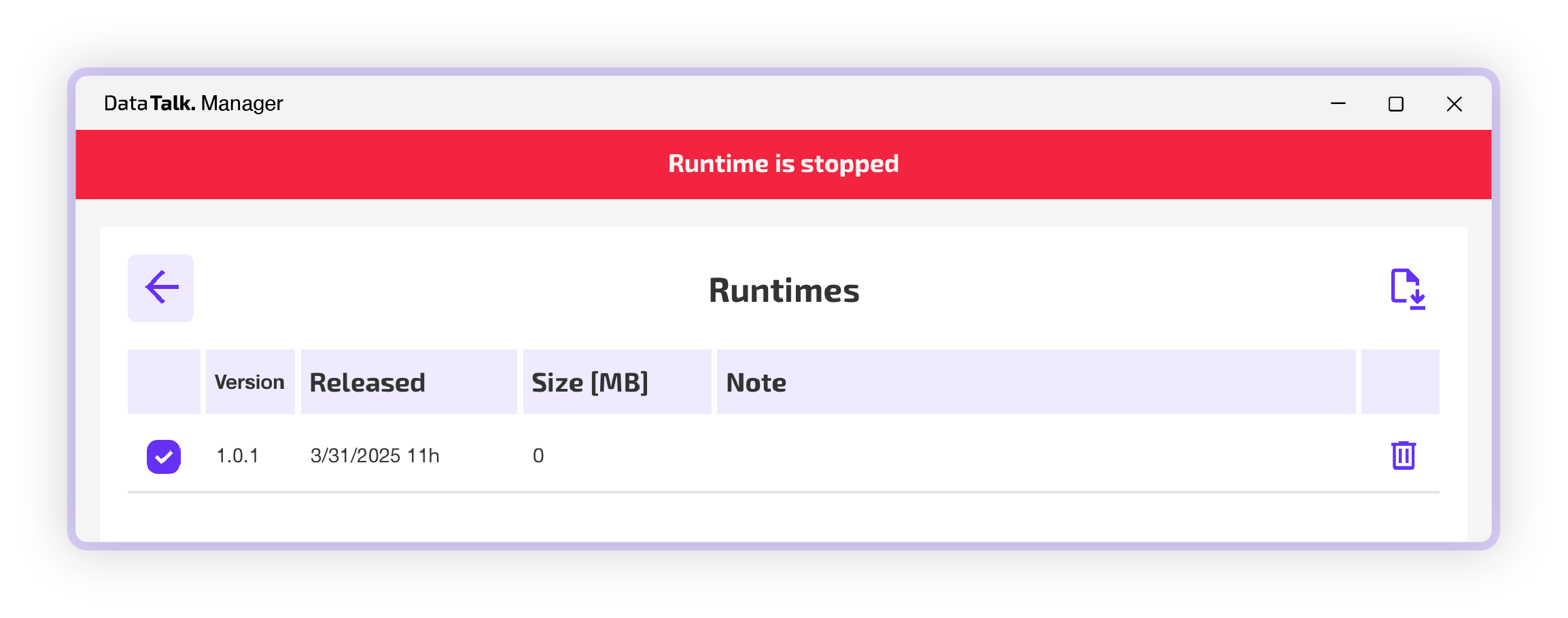
trouble1

If yes then make sure that:

Windows

  • Make sure you have virtualization enabled – head to the “Windows features” scroll down and allow “Virtual Machine platform”
  • Open terminal as administrator and type “wsl” to check whether WSL is installed if not then follow the steps mentioned in output of terminal. Even tho the WSL should be installed automatically after finishing installation of .exe file there can be rare occasions when the WSL is not automatically installed
  • Make sure that virtualization is as well enabled in your BIOS – some systems require to allow this option as well, follow the steps of your motherboard manufacturer and search for virtualization option

Linux

  • Make sure that docker is installed properly

Any operating system hosted on virtual machine

  • Make sure that virtual machine has option for virtualization checked

If you have make sure of all these steps, please delete the 0 size runtime and re-download it, after re-download runtime should show size and you should be able to start runtime.


When I am trying to access localhost I don’t see DataTalk

Please make sure that there is no other service that would use the same HTTP/HTTPS ports as you have specified during installation (Default HTTP: 80 and HTTPS: 443)

When it comes to Windows devices usually there is Windows IIS (Internet information services) webserver running by default on HTTP port 80, please make sure to either disable this Windows feature according to the Microsoft manual, or install DataTalk on different ports.


DataTalk Manager has stopped working after certain amount of time

In the past, we have experienced some clients mainly from the corporate companies reporting that DataTalk Manager has stopped working.

The issue is that corporations that an IT company is managing don’t allow or set newly created users under Windows accounts to have their passwords never expire, or their passwords are set to expire after a certain amount of time.

When the DataTalk Manager application is installed, it creates a mySCADAsrv user who runs the DataTalk service. If the user’s or the user’s own password expires, the DataTalk service is prevented from running.

To check whether you’re affected by this, open PowerShell and type the command bellow:

net users myscadasrv

This should return:

User name myscadasrv
Full Name mySCADAsrv
Comment DataTalk service
User's comment
Country/region code 000 (System Default)
Account active Yes
Account expires Never

Password last set 14/02/2025 12:42:57
Password expires Never
Password changeable 14/02/2025 12:42:57
Password required Yes
User may change password No

Workstations allowed All
Logon script
User profile
Home directory
Last logon 28/03/2025 06:37:27

Logon hours allowed All

Local Group Memberships *Administrators *Users
Global Group memberships *None
The command completed successfully.

Account expires and password expires should both be set never to expire

If you’re affected by some of the variables set to expire run commands below:

WMIC --% USERACCOUNT WHERE Name="myscadasrv" SET PasswordExpires=FALSE
net user myscadasrv /expires:never

This should set all the variables never to expire. We recommend, after doing this change, checking if it’s all still set to never expire, as IT department can update these rules remotely without letting you know. if the problem occurs again, get in touch with the IT department stop updating the expiration of this user

Linux versionWindows version

Contact us

Main Office:
Velvarská 1699/29
160 00 Prague
Czech Republic
 
General inquiry: [email protected]
Phone: +420 321 400 184
 

Follow us

Facebook icon

Twitter icon

Youtube icon

Linkedin icon

Products

  • PRODUCTS OVERVIEW
  • myDESIGNER
  • myPRO
  • myBOX
  • myPANEL
  • myCMS
  • myACCESS

Solutions

  • Production overview
  • Active control
  • Alarming system
  • Production statistics
  • Intelligent maintenance
  • Paperless production
  • Remote Connectivity
© Copyright mySCADA Technologies
  • Terms and conditions
  • Privacy policy
  • EULA
Manage Consent
To provide the best experiences, we use technologies like cookies to store and/or access device information. Consenting to these technologies will allow us to process data such as browsing behavior or unique IDs on this site. Not consenting or withdrawing consent, may adversely affect certain features and functions.
Functional Always active
The technical storage or access is strictly necessary for the legitimate purpose of enabling the use of a specific service explicitly requested by the subscriber or user, or for the sole purpose of carrying out the transmission of a communication over an electronic communications network.
Preferences
The technical storage or access is necessary for the legitimate purpose of storing preferences that are not requested by the subscriber or user.
Statistics
The technical storage or access that is used exclusively for statistical purposes. The technical storage or access that is used exclusively for anonymous statistical purposes. Without a subpoena, voluntary compliance on the part of your Internet Service Provider, or additional records from a third party, information stored or retrieved for this purpose alone cannot usually be used to identify you.
Marketing
The technical storage or access is required to create user profiles to send advertising, or to track the user on a website or across several websites for similar marketing purposes.
Manage options Manage services Manage {vendor_count} vendors Read more about these purposes
View preferences
{title} {title} {title}